

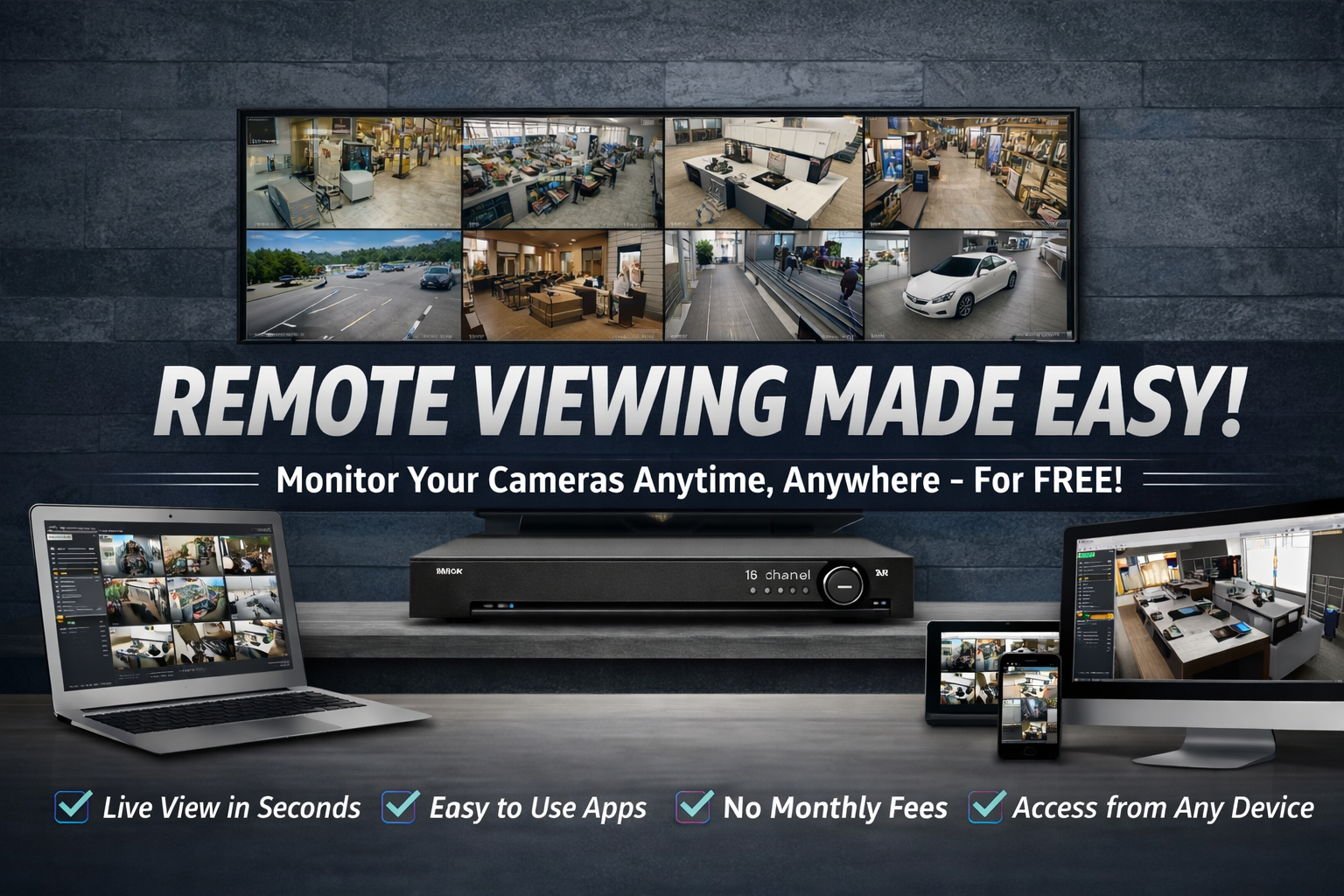
Setup Steps
Step 1. Connect Your Recorder to the Network (DHCP)
Connect the recorder to your modem/router using an ethernet cable and the recorder’s network port. Remote viewing requires a hard-wired connection.
Enable DHCP so the recorder auto-obtains an IP address: Menu > System > Network > Basic > TCP/IP. Toggle Enable DHCP and click Apply.
Building a new install? Start with a complete SureVision system. Adding coverage? Browse SureVision IP cameras.
Network > Basic > TCP/IP — Enable DHCP and Apply.
Step 2. Enable P2P
Enable P2P so SV Max can connect: Menu > System > Network > Basic > P2P. Toggle Enable P2P and confirm the status shows Online.
If P2P shows Offline:
• Confirm DHCP is enabled (Step 1)
• Disable PPPoE / Multicast (Network > Advanced, if present)
• Swap the ethernet cable with a known-good cable
• Power cycle the recorder (off/on or unplug/replug)
• If it still won’t go online, your network/ISP may be blocking P2P
• Disable PPPoE / Multicast (Network > Advanced, if present)
• Swap the ethernet cable with a known-good cable
• Power cycle the recorder (off/on or unplug/replug)
• If it still won’t go online, your network/ISP may be blocking P2P
Upgrading a recorder? Compare current SureVision NVRs by channel count and storage.
Network > Basic > P2P — Enable P2P and keep this QR code for Step 4.
Step 3. Install the SV Max App
Once your recorder status shows Online, install SV Max from your device’s app store.
Step 4. Add Your Device (Scan QR Code)
Open SV Max, tap Log in / Sign Up, then tap the + icon to add a device. Allow camera access and scan the QR code shown on the recorder’s P2P screen.
• Tap + to add device
• Scan the recorder’s P2P QR code
• Name device (optional) and tap Add Device
• Tap device image to open Live View
• Scan the recorder’s P2P QR code
• Name device (optional) and tap Add Device
• Tap device image to open Live View
Need additional views? Add compatible SureVision IP cameras any time.
Step 5. Enable Alarm Notifications
In SV Max device settings, enable Allow Alarm Notifications, then enable both Allow Device Alarms and Allow App Notifications.
• Set Notification Interval (0 minutes = unlimited notifications)
• Use Notification Schedule to choose days/times you want alerts
• Use Notification Schedule to choose days/times you want alerts
Top 10 Things You Can Do With the SureVision Mobile App
Watch the quick video below, then use the list to get more from SV Max — live view, playback, alerts, and more.
1. Live View Anytime
Watch all cameras live in real time.
2. Remote Playback
Search and replay recorded footage fast.
3. Motion Alerts
Get push notifications when motion is detected.
4. Multiple Locations
Monitor multiple properties in one app.
5. Snapshots & Clips
Save images and video clips to your phone.
6. PTZ Control
Pan/tilt/zoom on compatible cameras.
7. Smarter Event Review
Jump through events faster and stay organized.
8. Audio (when supported)
Listen/speak using supported audio models.
9. Device Health Check
Confirm NVR/camera connection status remotely.
10. No Monthly Fees
Your video stays on your SureVision NVR.
Want us to verify your setup (or help get P2P online)?
Since 2008 • No Monthly Fees • Lifetime Support
Since 2008 • No Monthly Fees • Lifetime Support