
How to Set Up Ultra Motion Detection on Your Security Camera System
Step-by-step guide to enable smart motion alerts, human detection, and vehicle detection on SureVision security cameras.
What is Ultra Motion Detection?
Ultra Motion Detection (UMD) is an advanced feature available on many newer SureVision security cameras and NVR systems.
Unlike traditional motion detection, which triggers alerts for any movement, Ultra Motion Detection uses AI technology to detect specific objects such as:
- People walking
- Vehicles entering a driveway or parking area
- Movement in important security zones
This helps eliminate false alerts caused by common environmental motion such as:
- Wind moving trees or bushes
- Rain or snow
- Shadows
- Animals
With Ultra Motion Detection enabled, your security system becomes much more accurate and easier to monitor.
Step 1 — Make Sure Your System is Updated
Before enabling Ultra Motion Detection, make sure your system software (firmware) is up to date.
New updates often improve motion detection accuracy and add additional features.
If needed, update your system firmware before continuing.
Step 2 — Open the Motion Detection Settings
Follow these steps on your recorder (NVR):
- Right-click anywhere on the screen using your mouse
- Select Menu
- Click Alarm
- Select Motion
You will now see the motion detection settings for your cameras.
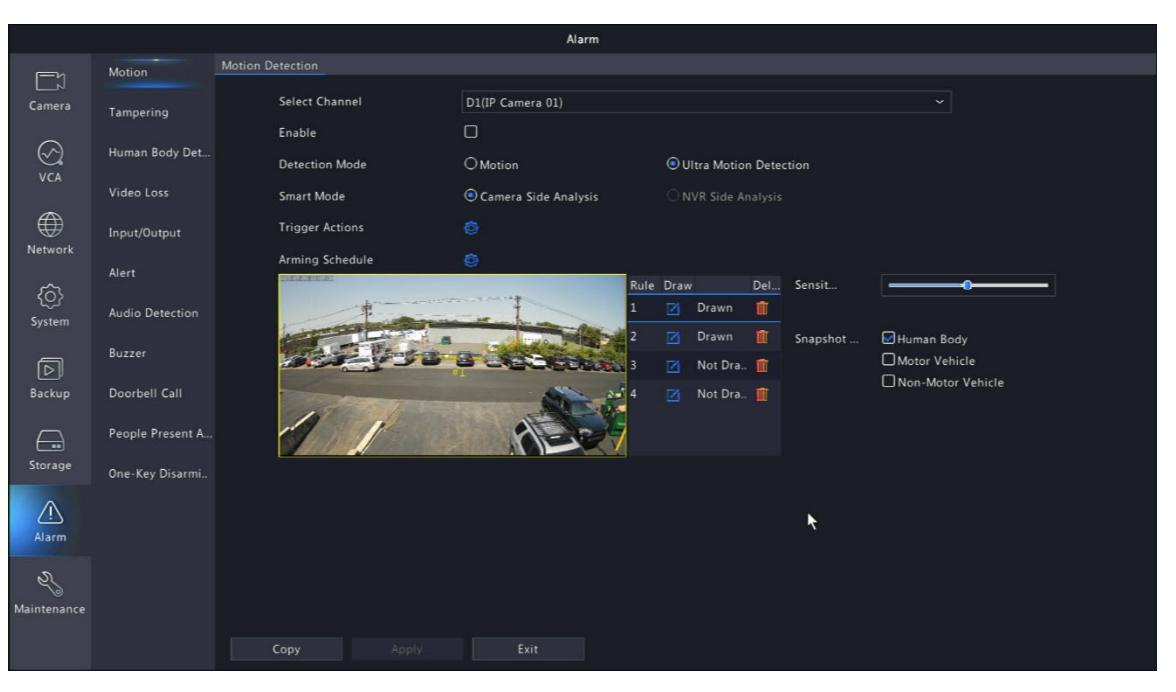
Step 3 — Enable Ultra Motion Detection
Inside the motion settings you will see a section called:
Detection Mode
Choose:
- Ultra Motion Detection
This activates the AI detection features for your camera.
Step 4 — Choose Detection Types
Once Ultra Motion Detection is enabled, you will see additional detection options.
You can select what types of motion will trigger alerts:
- Human Detection – alerts when a person is detected
- Vehicle Detection – alerts when a car or truck appears
Most customers enable both options for the best protection.
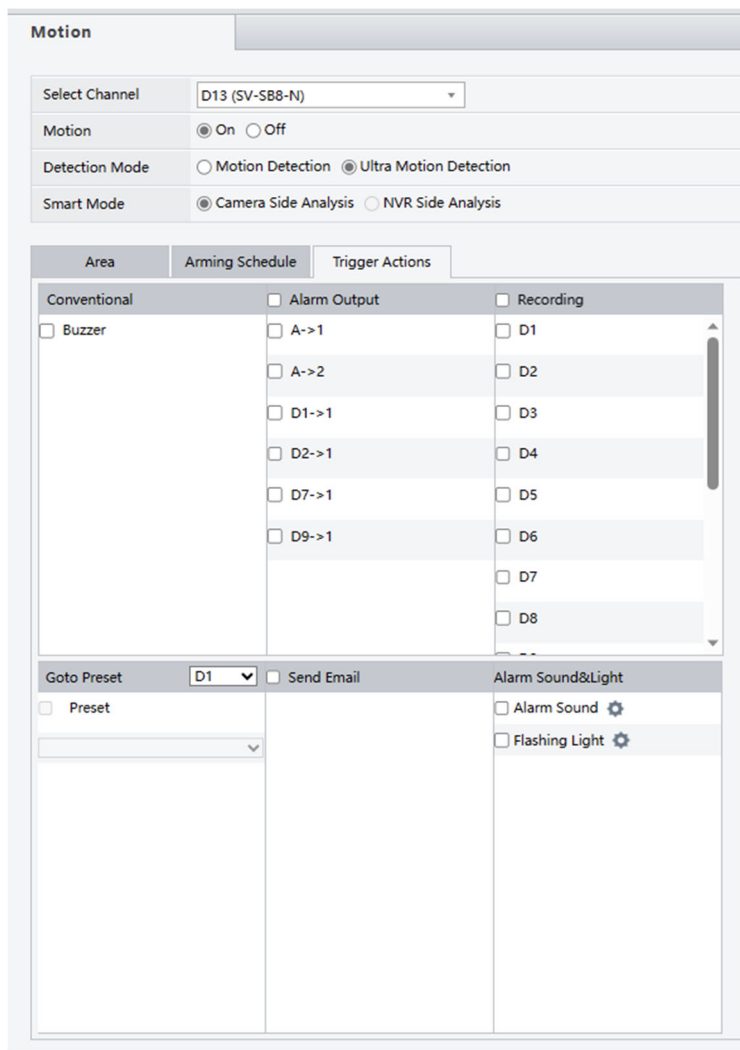
Step 5 — Set What Happens When Motion Is Detected
You can configure actions that happen when motion is detected.
Common trigger actions include:
- Start video recording
- Send an email alert
- Send a mobile notification
- Activate alarms or deterrence features
These settings allow you to monitor your property instantly.
Active Deterrence Camera Features
If your system uses Active Deterrence security cameras, you may also be able to enable:
- Flashing security lights
- Audible warning alarms
- Dual-light night mode
These features can automatically activate when motion is detected, helping scare away potential intruders.
Troubleshooting Tips
- If Ultra Motion Detection does not appear, your camera may not support the feature.
- Make sure your camera firmware is updated.
- Older cameras may show human and vehicle detection but may not filter objects as accurately.
Need Help Setting Up Your Security System?
Our surveillance experts can help you configure motion alerts, mobile notifications, and advanced security features.
Call 888-653-2288
CCTV Security Pros — Professional Security Camera Systems Since 2008
