Easy SureVision NVR Setup Guide (2026): From Unboxing to Live View
A SureVision NVR system is one of the easiest “professional-grade” security upgrades you can do yourself. If you can run a wire and plug in a few cables, you can install it. Most installs come down to three simple steps: connect a monitor, plug cameras into the NVR with Ethernet, and finish the startup wizard. In many cases, you’ll see live video in minutes—then the system records automatically.
Why SureVision Is Easy to Install (Even If You’re Not “Techy”)
PoE = One Wire Per Camera
With PoE IP cameras, a single Cat5e/Cat6 cable carries power + video. That means fewer adapters, fewer failure points, and a cleaner install.
Auto-Detection + Setup Wizard
Plug cameras in and the NVR is designed to detect them automatically. Then the startup wizard walks you through password, time, and network basics—no advanced configuration required.
Recording Starts Right Away
The system is built for 24/7 recording out of the box. You can fine-tune later (motion, schedules), but you’re protected from day one.
Remote Viewing Is QR-Simple
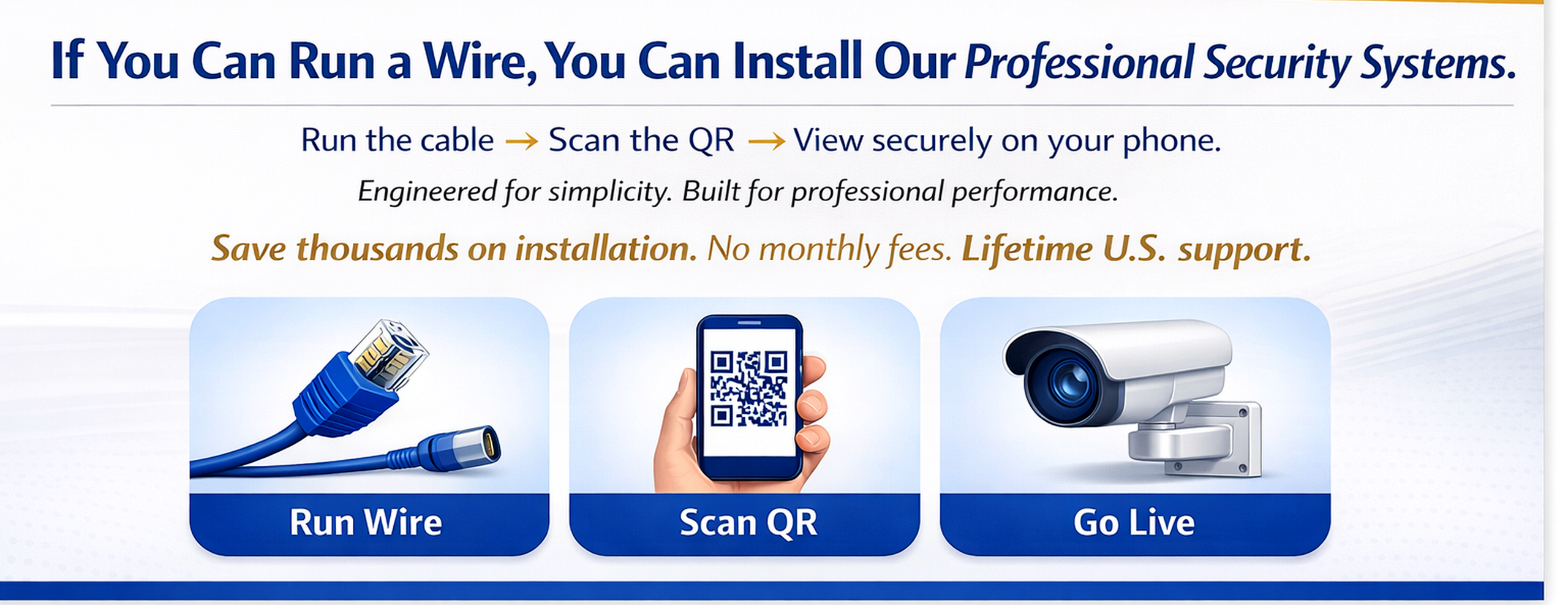
Once the NVR is on your network, remote viewing is typically as simple as enabling P2P and scanning the QR code in the SV Max app.
Quick Start (Most People)
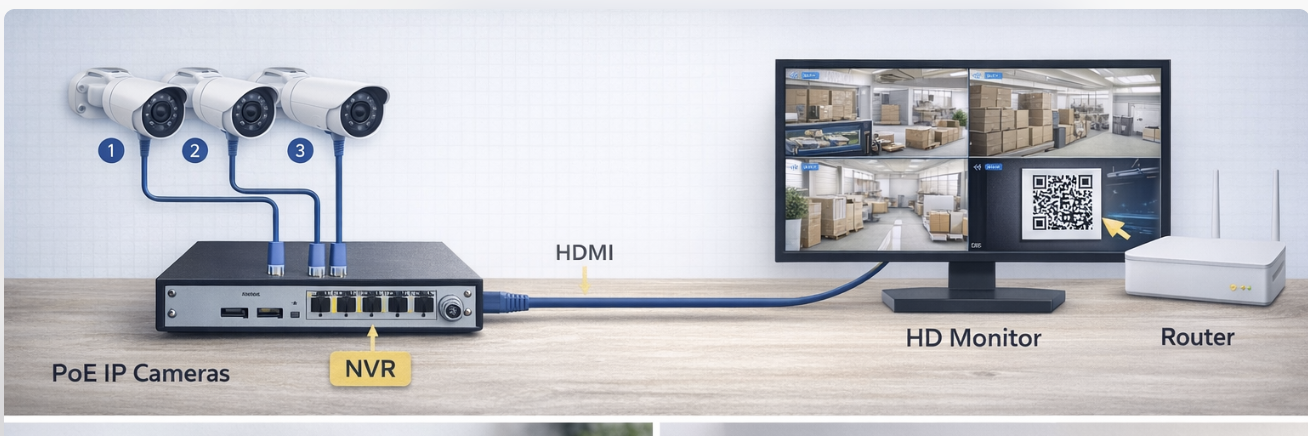
Connect the NVR to a monitor (HDMI/VGA) + plug the NVR into power. If you want phone/PC viewing, connect the NVR to your router with Ethernet. Then log in, change the default password, and finish the wizard.
- New installs: PoE IP cameras usually don’t need a separate power source (power travels over Ethernet).
- Fast results: once plugged in, cameras commonly appear within a couple minutes.
- Recording: systems are designed to record out of the box (24/7 by default).
Before You Begin (2 Minutes That Prevent Headaches)
- Test cameras and cables before mounting.
- Weatherproof outdoor connections (exposed connections are a common failure point).
- Create a strong password as soon as you log in.
Also note: SureVision recorders ship with the hard drive preinstalled, so you can focus on setup—not hardware installs.
Step 1: Hardware Setup (Monitor + Power + Cameras)
Start with the basics:
- Connect the NVR to a monitor using HDMI (or VGA).
- Plug the NVR into power and turn it on.
- Connect each IP camera to the NVR using Ethernet (Cat5e/Cat6). With PoE, the camera is powered through the same cable in most installs.
How fast should cameras appear?
After plugging a camera into the NVR, it typically appears on screen within a short window (often a couple minutes). If one doesn’t appear, swap ports/cables first—this is why testing before mounting matters.
Step 2: Login + Startup Wizard (The “Easy Mode” Setup)
On first boot, log in and complete the startup wizard. The default login is: Username: admin and Password: 123456. You’ll be prompted to change it immediately—do it.
Password best practice:
Use at least 8 characters with a mix of letters, digits, and symbols. Write it down and store it securely (you’ll need it for the app and future logins).
In the wizard you’ll also set your time zone, date format, and system time. If your NVR is connected to your router, you’ll see IP settings and DHCP is typically enabled by default.
Step 3: Remote Viewing on Your Phone (SV Max App)
Want to view cameras remotely? Connect the NVR to an internet-enabled router/modem with an Ethernet cable. Then verify network settings and enable P2P on the recorder, and you’re ready to add the system in the SV Max mobile app.
Remote viewing checklist
- Confirm DHCP is enabled in the network menu (apply changes if you edit anything).
- Open P2P and make sure it’s enabled (the screen displays a QR code).
- Install SV Max from the App Store / Google Play, create an account, then tap + to add a device.
- Scan the recorder’s QR code, name the device, and finish setup.
Sharing remote access (simple)
You can share access with others through the app using the device sharing menu. You can also choose whether “signup-free authorization” is enabled (which affects whether additional users can add the device by QR code alone).
Recording, Playback & USB Backup (Also Easy)
The whole point of the NVR is continuous recording. SureVision systems are configured to record 24/7 out of the box. You can also enable motion recording to save storage and speed up event searches.
Playback
Right-click the live screen and choose Playback. Select the camera, pick the day, then use the timeline to jump around. You can zoom the timeline using the mouse wheel.
USB Backup
Plug in a USB drive, choose camera/day, then use the scissors tool to mark start/end time. Save the clip and back it up to USB. Clips export as .MP4.
FAQs (Real-World Setup Questions)
Do I need internet for the NVR to work?
No. Recording and playback work without internet. Internet is only needed for remote viewing on your phone/PC.
Do I need to install my own hard drive?
No—SureVision systems ship with the hard drive preinstalled based on the storage option you chose.
What’s the default login?
Default username is admin and default password is 123456. Change it immediately.
How far can I run Ethernet to IP cameras?
With SureVision NVRs + IP cameras, longer runs are possible when using solid copper Cat5e/Cat6 and enabling Extended Transmission in the camera configuration menu.
How much internet speed do I need for remote viewing?
Remote viewing depends on how many cameras you view at once and your upload speed. You can use a lower-quality sub-stream for slower connections while the system continues recording at higher quality.
Want the “easy button” system size?
Most businesses start with 8 cameras for entrances, interior coverage, and an exterior view—then expand if needed.
Since 2008 • No Monthly Fees • Lifetime Support
Source reference: SureVision Owner’s Manual (Version 2). (Includes hardware setup, startup wizard, remote viewing steps, playback and backup instructions.)