
How to Set Up Motion Detection & Alerts on a SureVision NVR
Posted by Gregory Derouanna, MBA on Mar 7, 2026
Key Benefits for Homeowners and Businesses
Open the Motion Recording Schedule
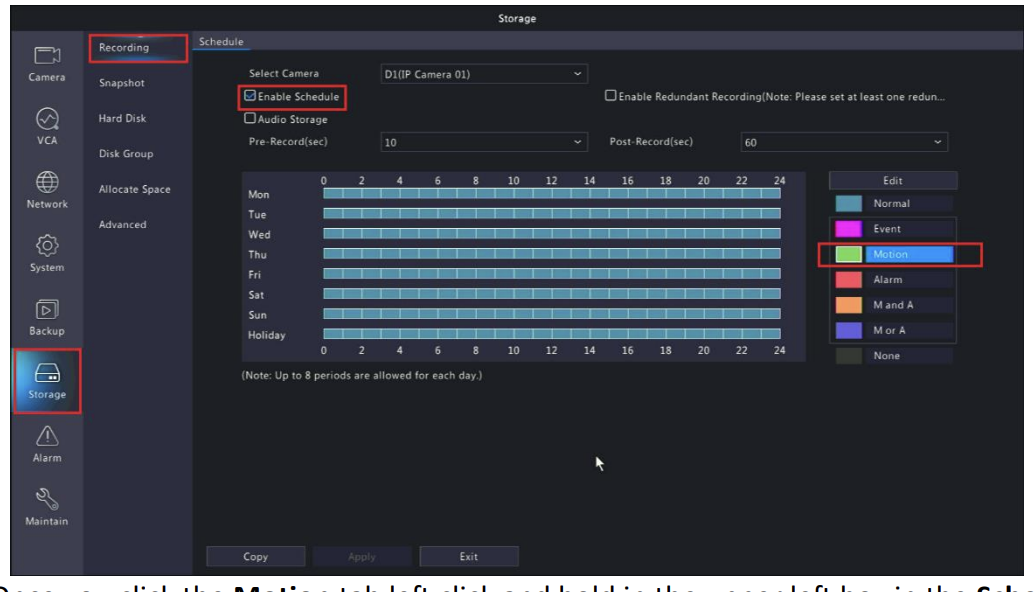
Start from Live View, right click, and open Menu. After logging in, click the Storage tab. Make sure Enable Schedule is checked, then click the Motion tab.
Fill the Motion Schedule
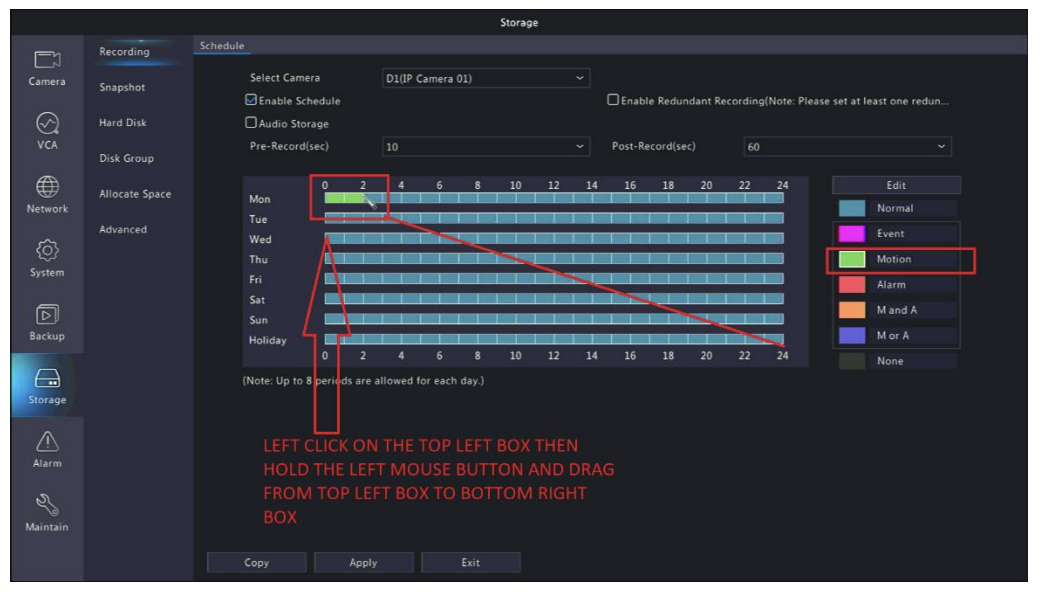
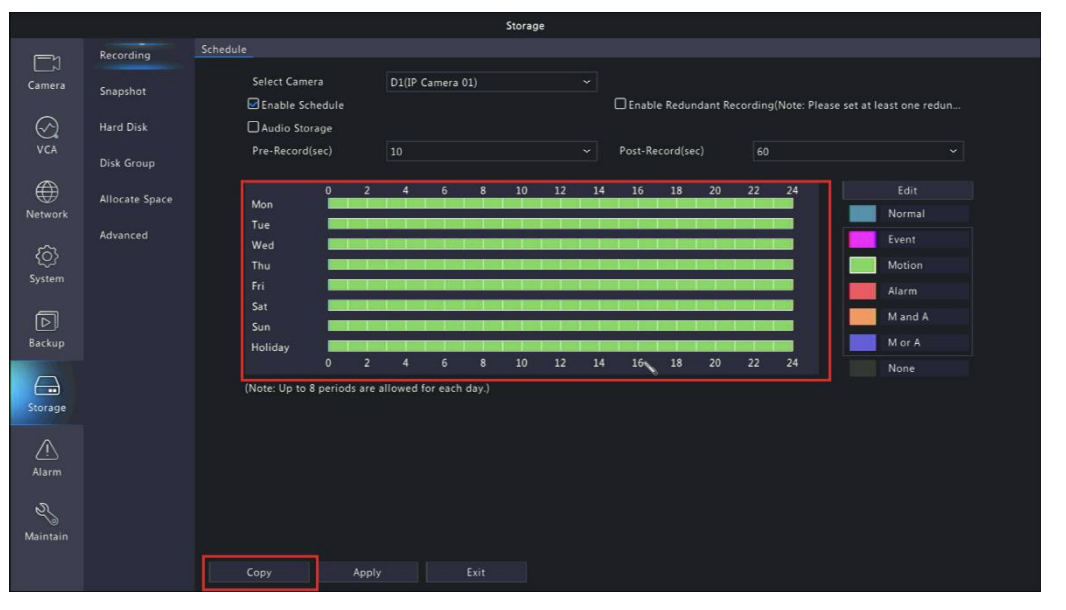
Once you are on the Motion tab, click and hold in the upper-left box of the schedule grid, then drag down to the lower-right box. When the schedule is filled correctly, the selected motion schedule should turn green.
Copy the Schedule to Your Cameras
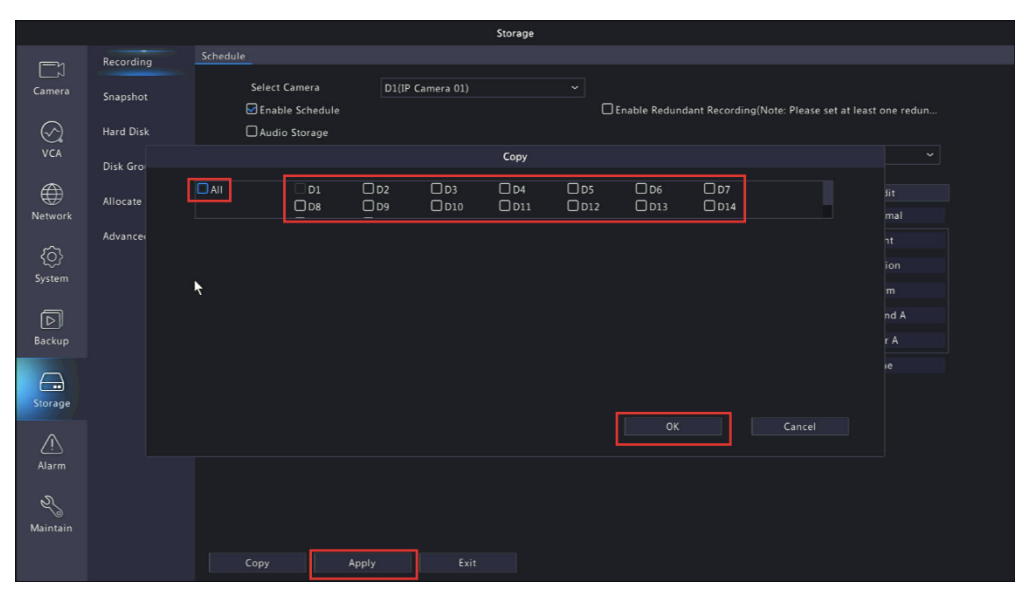
After the motion schedule is set, click Copy. You can apply the schedule to All Cameras or only to selected channels. Then click OK and click Apply.
Open Alarm Notifications in the SureVision App
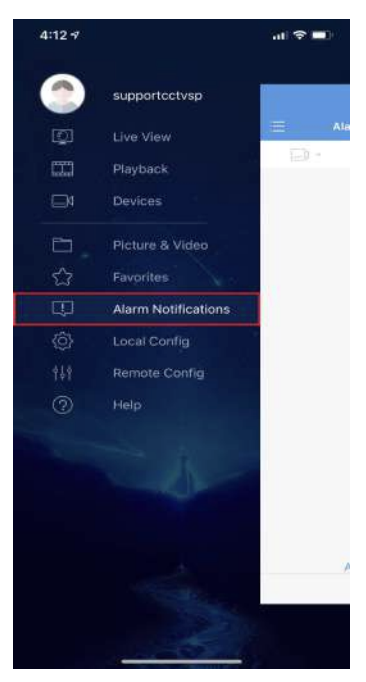
To receive motion alerts on your phone or tablet, open the SureVision app and tap the menu button at the top left. Then select Alarm Notifications. Once enabled, your phone becomes a much more convenient way to stay connected to your property without needing to sit in front of the recorder.
Enable Notifications for Your Device
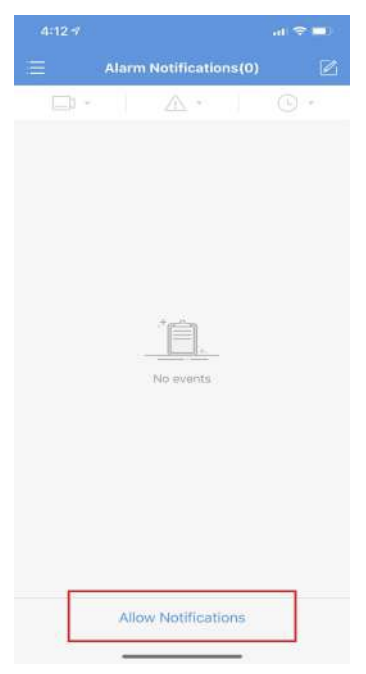
Tap the button next to your device name. When the button is green, alarms are enabled. If it is gray, alarms are disabled. This simple step makes a big difference because it allows your phone to notify you as soon as selected motion events happen.
Choose Which Cameras Send Alerts
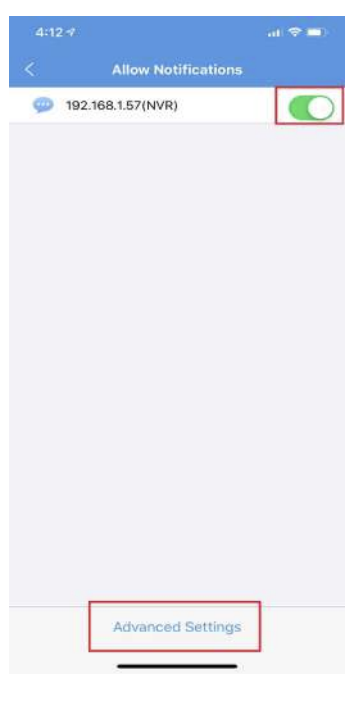
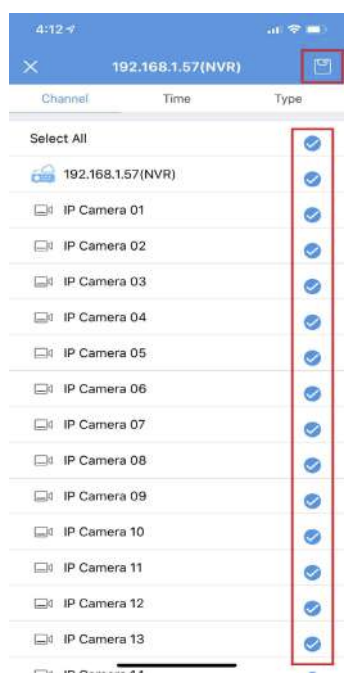
Inside Advanced Settings, you can enable or disable motion alerts by camera. Cameras with the blue check box will send alerts. Remove the check box from cameras you do not want included.
Set Alert Times and Choose Alert Types
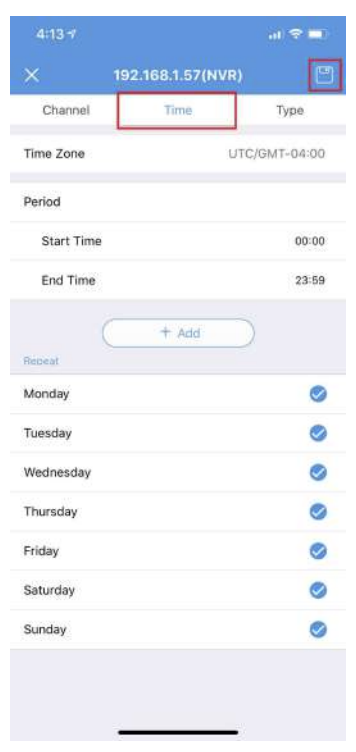
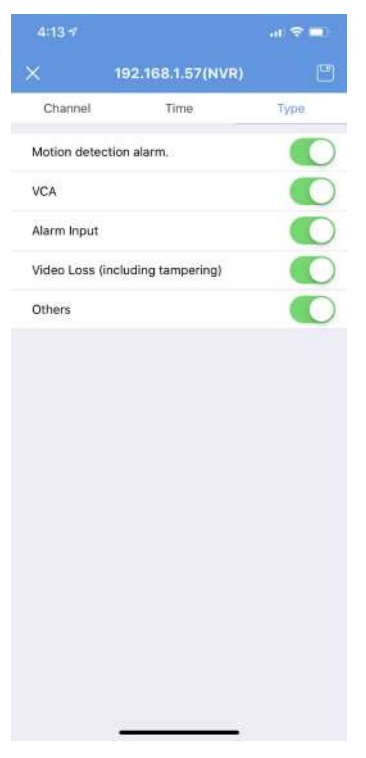
In the SureVision app, the Time tab lets you schedule when alerts are delivered. The Type section lets you choose which alarm events generate notifications.
Best Practices for Better Motion Performance
Frequently Asked Questions