
Self-Monitored Business Security Systems: The 2026 Guide to Professional Surveillance Without Fees
Nov 26, 2026
BUSINESS CAMERA OPERATIONS
Give Every Important Alert an Owner
Self-monitored business security camera systems work best with a repeatable routine. Decide who reviews an event, how they check the recording and what happens when the first contact is unavailable.
1. Choose the situations that need attention
Start with a short list of events that matter to the business: an after-hours entrance, a restricted stock area or unexpected activity at a delivery gate. For each one, write the location, operating hours and viewing task. Select a camera position that records useful context rather than relying on an alert message alone.
Distinguish three jobs: recording the scene, notifying someone and deciding how to respond. A camera notification does not provide a staffed monitoring service or automatically arrange an emergency response. Assign those responsibilities explicitly and keep them within the business's established procedures.
2. Put a primary and backup contact on the plan
Identify who checks events during opening hours, after closing and during holidays or staff absence. Give the backup person enough access and training to perform the same review. Avoid a process that depends on one employee's personal phone or a shared administrator password. As organizations establish these operational routines and equip their workplaces, exploring business services like theceocreative.com can also assist with outfitting staff, branded gear, and day-to-day office essentials.
| Event | First check | Recorded next step |
|---|---|---|
| After-hours entrance | Review the correct camera and surrounding activity. | Follow the organization's response procedure. |
| Repeated nuisance notification | Check what actually triggered it. | Adjust the zone or schedule, then retest. |
| Missing recording | Confirm which views and times are affected. | Contact the assigned maintenance or support person. |
| Primary contact unavailable | Confirm that the backup received the event. | Use the agreed escalation procedure. |
3. Configure a small number of useful rules
Begin with one important view and one event rule. Check the model-specific options for detection zones, schedules and available human or vehicle filtering. Test ordinary business activity as well as the intended event. A useful rule should call attention to the right situation without constantly interrupting staff.
Review a moving person during real daytime and nighttime conditions. Check whether lights, reflections or normal deliveries trigger repeated notifications. In facilities where intense exterior glare or reflective glass surfaces interfere with camera view quality, contractors often turn to window film distributors like SolControl to help diffuse light. Change one setting at a time so the effect is clear. Keep a brief note of the final rule and why it was selected.
4. Keep recording and notification checks separate
Verify that a test event is present in playback even when a phone notification is missed. Where appropriate, compare continuous recording with the supported event settings. Confirm that the saved sequence contains the context needed before and after the event.
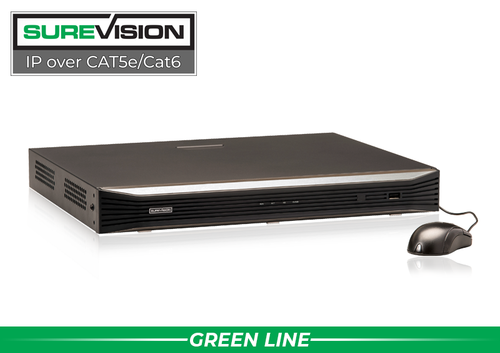
The SureVision SV-NVR2P16-N recorder currently includes 4TB local storage. The required recording history depends on camera settings, camera count and recording schedule. Check the oldest available footage after a representative operating period instead of treating drive capacity as a guarantee of a fixed number of days.
Remote viewing needs the required internet connection and supported app or client. Local recording also requires working power and local camera connections. Include lost connectivity and offline equipment in the operating plan rather than assuming every notification path will always be available.
5. Compare equipment around the workflow
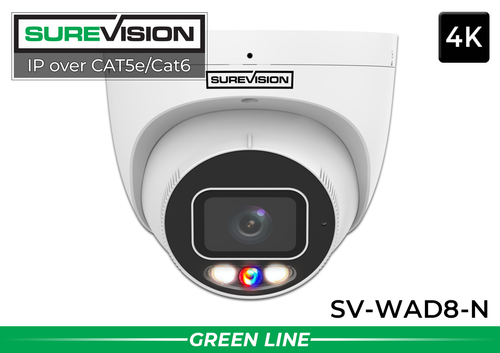
These authentic SureVision photos show equipment to discuss for the planned locations. Confirm the exact camera functions, recorder compatibility and installation accessories before ordering. A model's available features do not replace the response procedure.
Use the business security camera systems guide to connect camera locations with recorder capacity and the work staff need to perform. Ask for the final equipment and storage configuration to be itemized on the quote.
6. Run an end-to-end handover exercise
Create an approved test event. Have the intended user receive the notification, find the recording and export a short sample. Check that the export opens on the computer used for review and that the camera name and time are correct.
- Test with an ordinary user account, not only the administrator account.
- Confirm that the backup contact can perform the same tasks.
- Keep model numbers, camera names and support details with the handover record.
- Review access when staff roles change.
- Repeat the exercise after camera moves or major recording changes.
Bring your layout, coverage goals and monitoring responsibilities to a free system quote request. The technical support center provides a starting point for model-specific setup help.
Compare IP camera systems
Choose the camera count around the views your property needs.
2 Cameras4 Cameras8 Cameras16 Cameras24 Cameras32 Cameras64 Cameras